 Isaac Codex
Have a picture? Match the suggested icon, then open the entry. No useful picture? Start with the item category and a color. You do not need to guess the name first—and a recognition suggestion is something to check, not a verdict.
| What you know | Start with | Before you take the item |
|---|---|---|
| The item is visible | Identify or a saved image | Compare the full symbol with the candidate |
| Only its color and shape | Codex category + color | Compare silhouettes; clear a filter if it hides the target |
| Part of its name | Search | Open the entry and read the version-specific notes |
One image, one result, one entry
This walkthrough uses the app’s built-in Brimstone example. You can repeat it with Identify → Try an example. It is an image-input demonstration in the iOS simulator, not a photograph of a television.
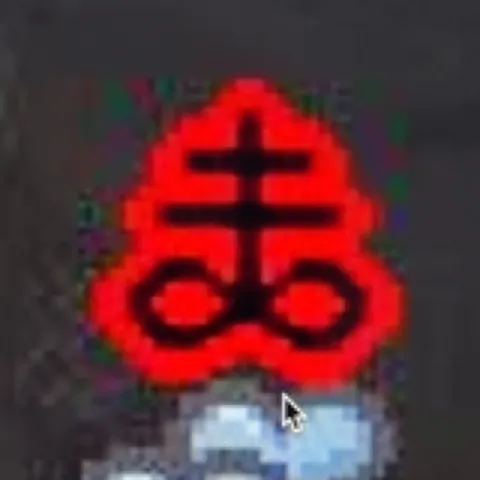
1. Compare the candidate with the input
In this run, the main candidate was Brimstone. The input and candidate share the crossbars and paired loops. The alternatives underneath include other red or dark symbols; color alone would not settle the match.
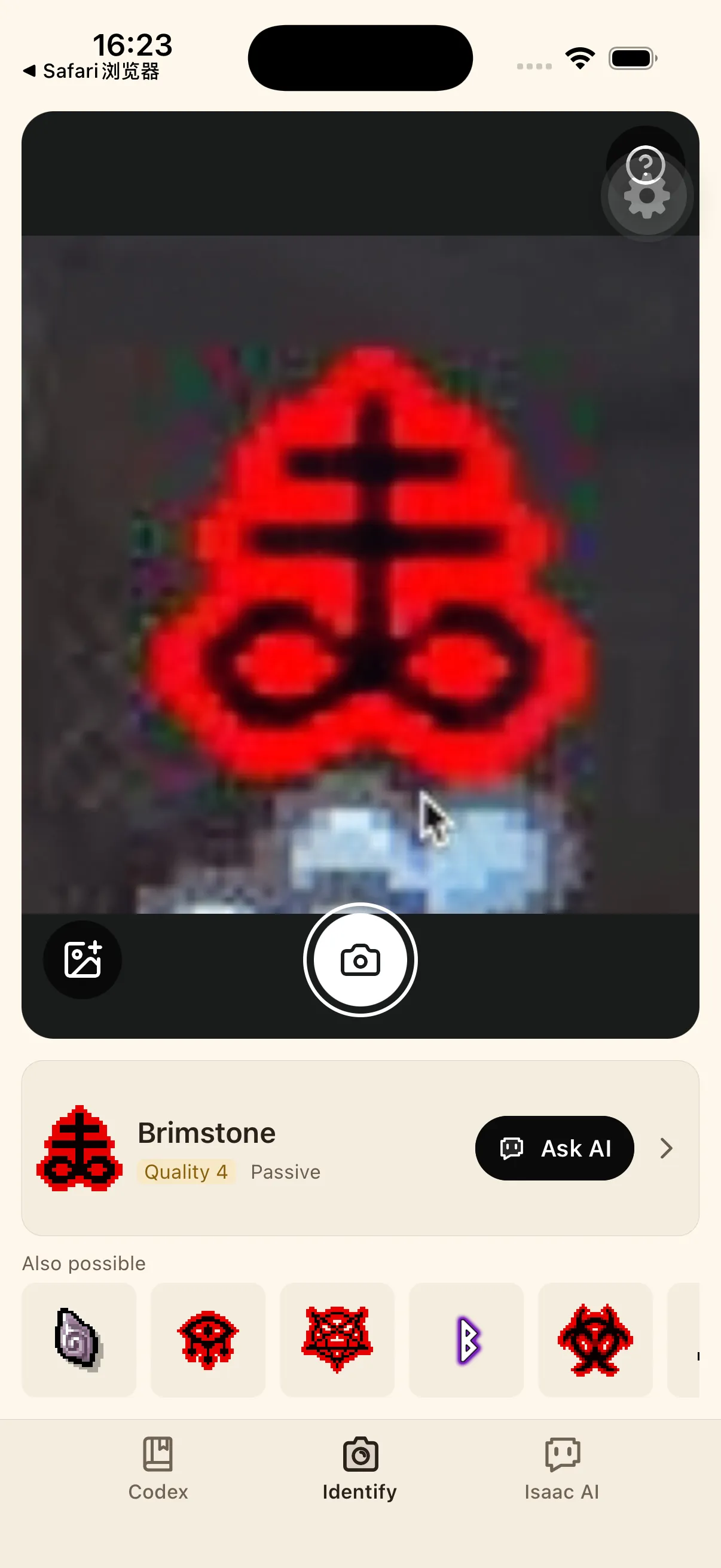
If the outline does not match, check the alternatives. For your own image, keep the whole item visible and remove unnecessary room/background area when framing it. Do not keep submitting the same unclear image hoping its identity will change.
2. Open the entry before deciding
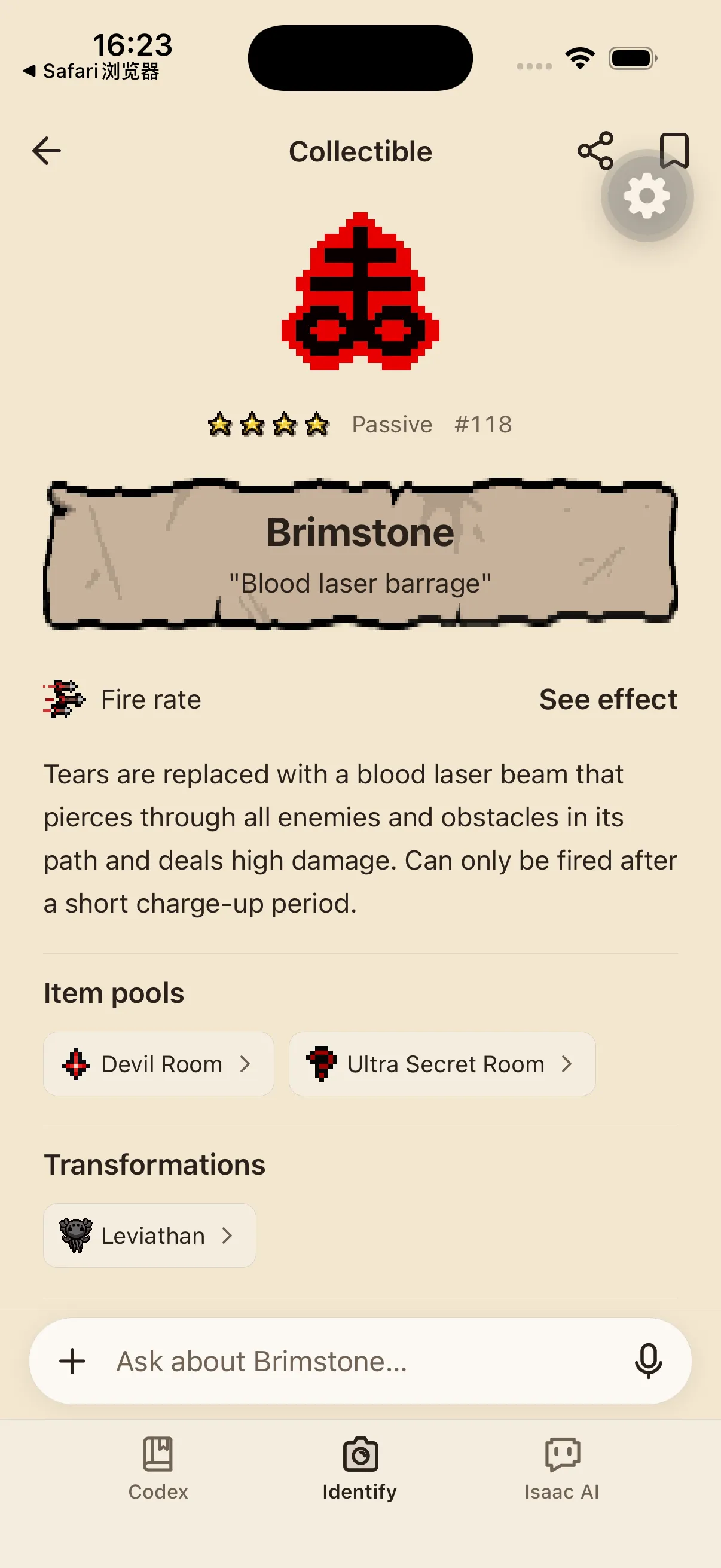
Tap the candidate card. This one opens Brimstone, #118. Compare the larger icon, then read what the item does. Here, the entry describes charged blood-laser shots replacing tears. That is a much better basis for a pickup decision than the red icon or its quality alone.
No clear image? Use the same visual clues in the catalog
For the same red symbol, open Codex, choose Collectibles, and select Red. In our check, Brimstone remained among the results with the search field empty. Compare its loops and crossbars with the other icons, then open the entry. This is a browsing fallback, not another recognition result.
A filter narrows the list; it does not prove identity. If you cannot find the item, tap the selected color again to clear it. Try the full category before choosing a different color. Check that you did not start in Trinkets or Cards when you meant a collectible.
If you already know part of the name
Use search instead of scrolling through colors. After finding the entry, read the effect and relevant version notes. Room context can help, but it is not proof: game effects can change where items appear.
If you are deciding whether a room will reroll what you already own, the Dice Room guide separates held items from uncollected pedestals.
What this example establishes
The input, actual recognition result and entry navigation were checked on Isaac Codex QA, iOS 26.5, development app 0.1.0 (1), on September 21, 2026. The built-in example returned Brimstone in English and Chinese; the category/color fallback was separately checked in the Chinese UI. This does not establish recognition accuracy across other images, live-camera performance or a physical TV-to-phone test.
The displayed entry cites Brimstone on the Rebirth Wiki, revision 265889. The short effect description above adapts that entry: attribution to its wiki.gg contributors, CC BY-SA 4.0. Game artwork rights remain separate. Screenshots are unretouched simulator captures; the input is the existing bundled example, not a newly captured game scene.